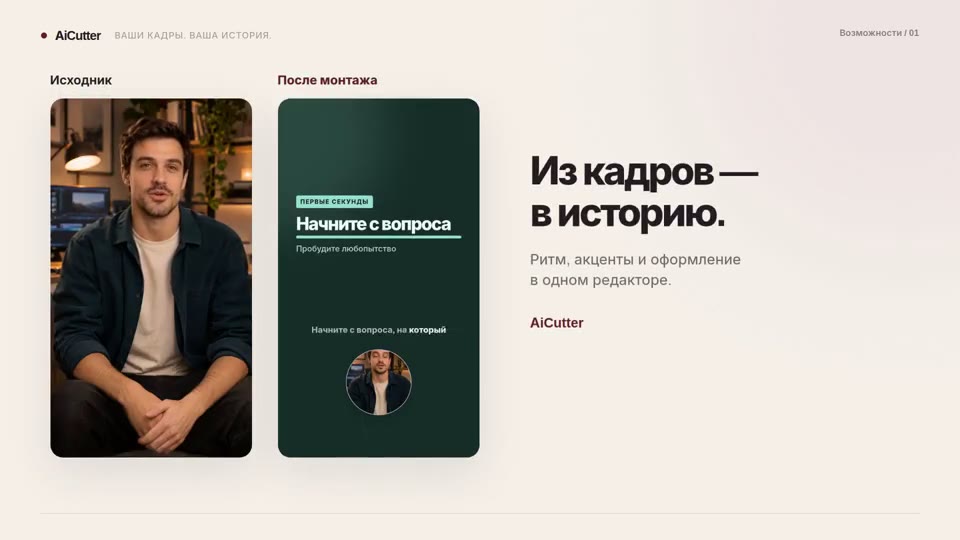
AI clip maker
Standalone clips you can review, edit and export individually.
How it works ↗ AICutter
Describe what you want to change. The assistant suggests adjustments to captions, styling or selected scenes. Read the response, click Apply and review the result in the player.
Open a project and click AI assistant next to Expand.
Make the captions larger
I suggest larger captions while keeping your selected scenes and audio.
ApplyA clear proposal for changes to an existing clip, or a script for a new video. Applied changes are saved in the project, and you can undo the last action.
The assistant is next to Expand. Describe a task, review the proposal and click Apply in the reply. The change appears in the central player; Undo restores the previous version.
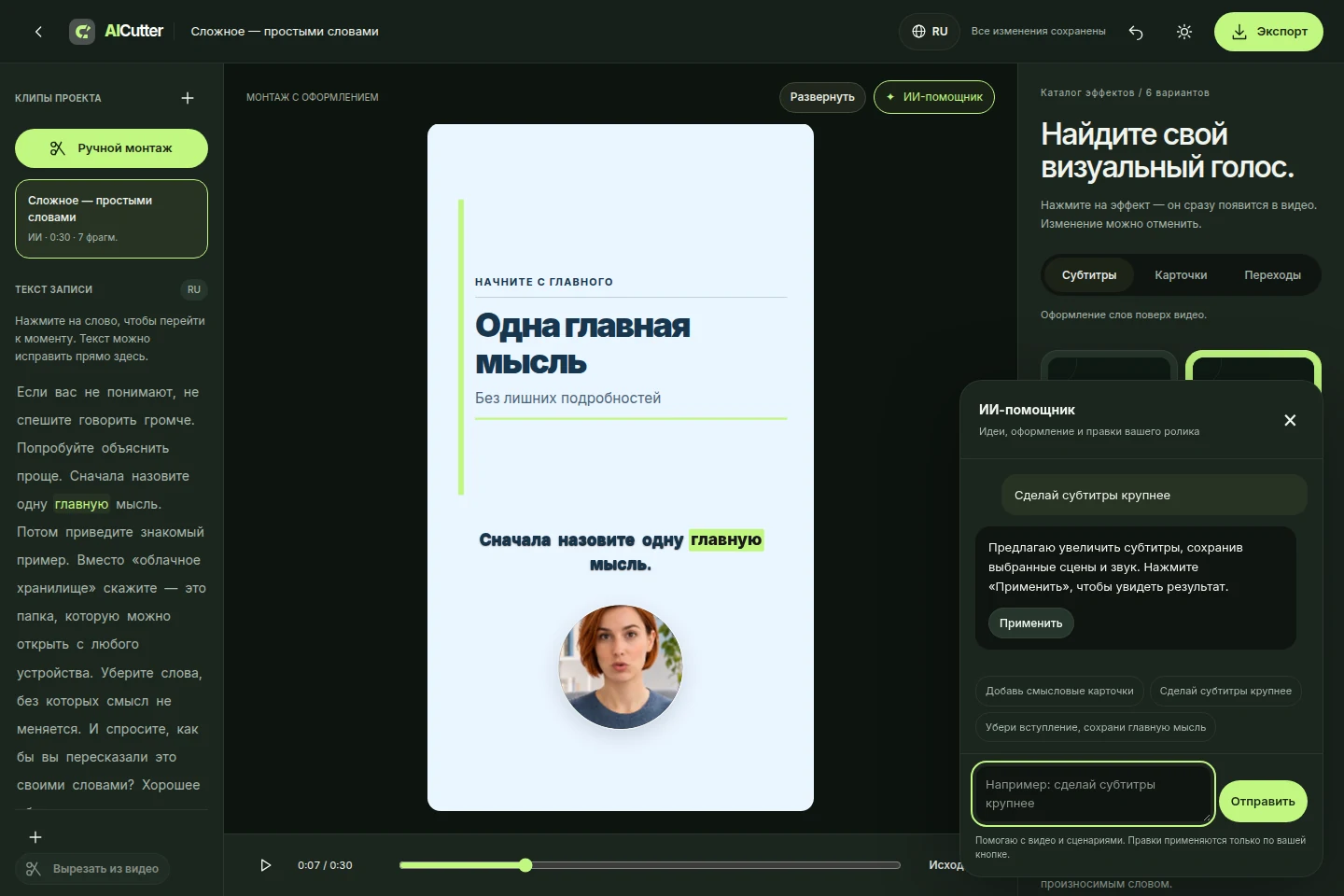
The assistant is available only in a specific project’s editor, next to Expand.
Try “Make the captions larger”, “Remove the intro, keep the main point” or “Add key-point cards”. Say what must stay: a conclusion, a number, a qualification or the order of the explanation.
The assistant explains the change. Click Apply to update the clip, then watch the transitions in the central player. If the result is unsuitable, undo the last action.
Use the regular editor tools to refine text, styling and music. Export starts separately: the chat does not publish or download the video for you.
The assistant receives the transcript, selected scenes and open clip settings. Change caption size and position, color, palette and supported effects. For trimming, it proposes keeping particular words and scenes in their original order. This helps you describe a precise edit without finding each setting yourself.
Ask for key-point cards to highlight supported statements, numbers or lists from the selected speech. If cards already exist, ask to change their style. Content comes from the video’s words: the assistant must not invent facts or promises. The effects catalogue offers different card designs.
Describe your topic, audience, goal and target length. For example: “Write a 30-second reel script about photo storage for beginners, with one example and a gentle invitation to try it.” The assistant writes the script in chat. Edit it, use it for filming or paste it into NeuroActor. Check facts, prices and wording yourself.
A suggestion does not change your clip by itself. If you edit the video after receiving a response, the assistant asks you to refresh the proposal. It does not watch footage like a person or execute arbitrary commands: it works with scenes, captions, styling, ideas and scripts.
The assistant requires sign-in: up to 30 messages per hour and 1,800 characters per request. Clip changes work in the scene editor; the separate manual editor has its own tools. Conversation history is stored for up to 14 days.
The first AI edit assembles a video from source footage. The assistant refines selected scenes or helps write a script. Asking it to change captions does not start a whole new montage.
Yes, one request is enough for a supported change. It takes effect only after you click Apply. Adding key-point cards may require a separate text-processing step.
To write a script without source footage, use Let AI write it from a description in NeuroActor. The assistant chat works inside a project.
No. The assistant does not swap faces, clone voices or generate arbitrary video scenes. Use NeuroActor for a talking character made from a portrait and text.
Clarify your request and ask for another version. You can undo an applied change. If the assistant is temporarily unavailable, the project remains saved and you can use the regular editor tools.
Open a project and click AI assistant next to Expand.
Standalone clips you can review, edit and export individually.
How it works ↗An MP4 with visible captions, or a separate SRT file containing the text and its timing.
How it works ↗A talking character and an editable project with captions. Turn suitable key points into cards, choose a style, add music and export a finished MP4.
How it works ↗ AiCutter
Opening AICutter
Your footage. Your rhythm. Your story.